
Stock documents
Updated
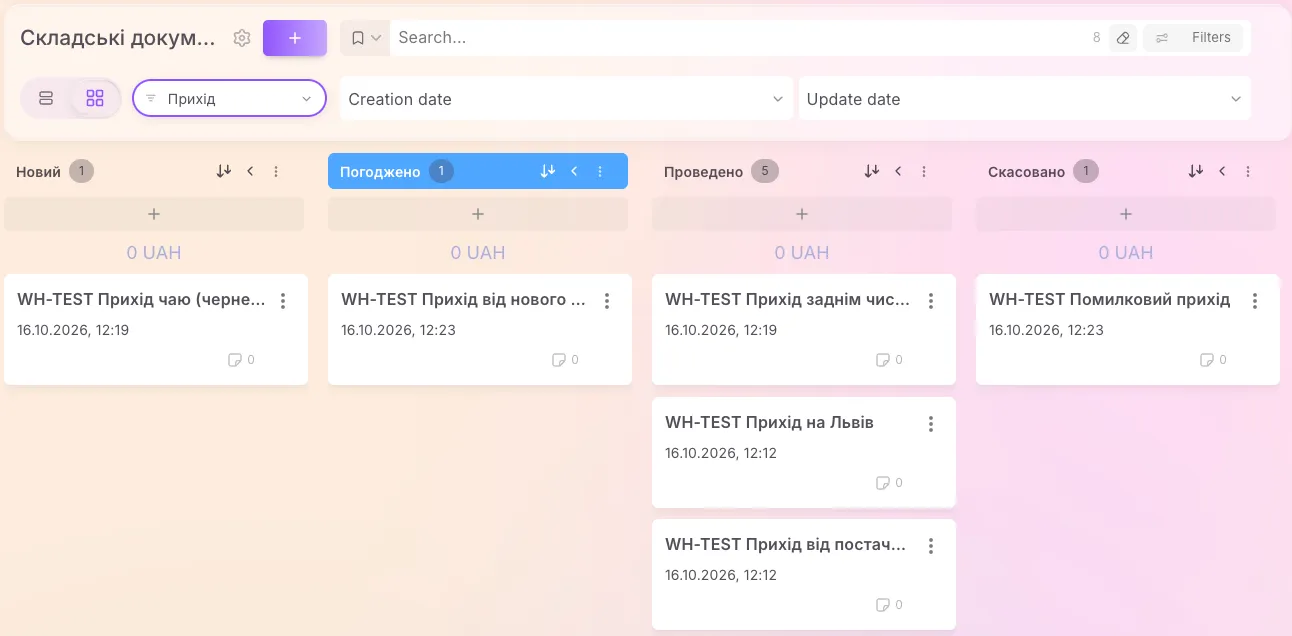
Documents live in the Smart objects section: the Stock documents object with four pipelines — tabs above the kanban. A document changes stock only after it is posted. You post it on the Posting tab in the document card or by moving it to the «Posted» stage.
The pipelines, stages and fields on this page have the names an English structure gets. On a portal whose structure was created in Ukrainian, they are named in Ukrainian — for example, the «Прихід» pipeline, the «Проведено» stage and the «Склад» field.
Four pipelines
Section titled “Four pipelines”| Pipeline | What it does | What to fill in |
|---|---|---|
| Receipt | goods arrive at the warehouse | Warehouse, Receipt type: «From supplier» (requires Supplier — a company), «Stock addition» or «Customer return» (requires Deal) |
| Transfer | goods move from one warehouse to another | Warehouse (the source) and Destination warehouse — different warehouses |
| Write-off | goods leave the warehouse | Warehouse, Write-off reason: «Spoilage», «Shortage» or «Other» |
| Stocktake | the actual stock replaces the book stock | Warehouse; in the lines — the actual quantity |
Products are added on the Products tab of the document card. In a receipt, the unit price excluding VAT after discount becomes the product’s cost. The price can be in any currency: the module calculates cost in the accounting currency at the rate of the document date (see Settings → Exchange rates). The administrator sees how a price was converted on the Posting tab, in the «Conversion to the accounting currency» block: «Coffee beans: 100.00 USD × 0.893256 = 89.33 EUR (ECB, 14/10/2026)». The line shows the unit price, not the line total. The module skips services.
Number, date and system fields
Section titled “Number, date and system fields”- The module sets Number itself a few seconds after creation: RC-000001 for a receipt, TR- for a transfer, WO- for a write-off, ST- for a stocktake (on a portal with a Ukrainian structure — ПР-, ПМ-, СП-, ІН-). Put your own number (for example, the supplier’s delivery note number) in Comment.
- Document date — the document changes stock as of this date. If it was not filled in at creation, the module sets the moment the record was created.
- A copy of a document (or a record created by import) gets its own number, and the module clears the Posted, Posting date and Voided marks: posting the copy is a separate action.
- Only the module changes Number, Posted, Posting date, Voided and Document type. It reverts a value changed manually and records this in the log on the «Structure» tab.
The «Posting» tab
Section titled “The «Posting» tab”At the top are the document’s type and number and its status: «Not posted», «Posted» with the date and time, or «Voided».
| Button | What it does |
|---|---|
| Post | posts the document. On a posted document, posts it again using its current lines |
| Cancel posting | removes the document’s stock movement; the document can be changed and posted again |
| Void | cancels the movement and closes the document for good: it cannot be posted again |
| Fill with stock | only in an unposted stocktake — see below |
| Update lines with stock | only in an unposted stocktake — see below |
The result is visible right away: «Document posted» or a list of errors. «The document contains errors — fix the lines and fields» means something is missing in the document itself: «No warehouse specified», «No receipt type specified», «No product lines», «Line 2: the quantity must be greater than zero and no more precise than thousandths», and so on. «Operation not completed» means there is not enough stock, for example: «Line 1: Coffee beans (Main warehouse): 100 required, 30 available on 04/10/2026». Below that, the module lists the documents and deals that took this stock, with links.
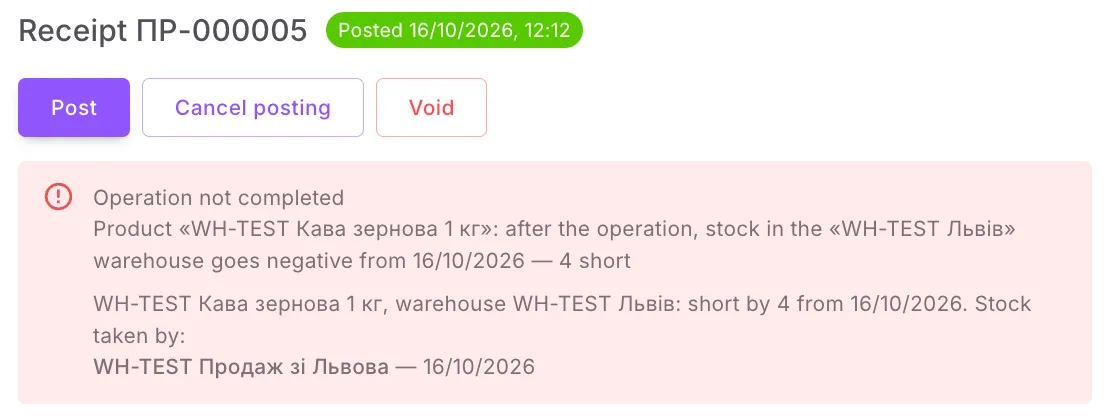
The «…: check the consequences» window
Section titled “The «…: check the consequences» window”Cancelling and voiding always, and posting if it changes the past, reduces deal reserves or affects stocktakes, first show a window: «Products affected: …», «The document changes the past: cost will be recalculated from …», which reserves will be released (from the newest deals; managers get a comment) and which stocktakes will need reposting. Confirm carries out the action, Close changes nothing.
Posting by moving to a stage
Section titled “Posting by moving to a stage”Each pipeline has four stages: «New», «Approved», «Posted» and «Cancelled». The module reacts to three of them — «New», «Posted» and «Cancelled»; you can rename these, and the module still recognises them under the new name. You can add your own stages between «New» and «Posted». It is better not to rename the «Approved» stage: the Structure tab looks for it by name and will offer to create it again.
- Moving a document to «Posted» posts it with the same checks as the button. A document created directly at the «Posted» stage (by import or a robot) is posted the same way; if it cannot be posted, it goes to «New» with a comment giving the reason.
- If it cannot be posted, the module returns the document to the previous stage and writes in the record’s comments: «The document was not posted, the stage was reverted: … You can post the document on the «Posting» tab».
- If posting would reduce deal reserves, it is not carried out by moving — post the document with the button to confirm the change to the reserves.
- A posted document cannot simply be moved out of «Posted»: the module returns it with the comment «To change the stage, first cancel posting on the «Posting» tab». On a repeat attempt it no longer returns the document, it only writes the comment.
- The buttons move the card too: Post — to «Posted», Cancel posting — to «New», Void — to «Cancelled».
Write-off
Section titled “Write-off”The Write-off pipeline is for goods that left the warehouse other than through a sale: they spoiled, went missing or left for another reason. Goods sold by a deal are written off by the module itself when the deal reaches the write-off stage: see Reserve and write-off by deal.
- Create a document in the Write-off pipeline, and fill in Warehouse and Write-off reason: «Spoilage», «Shortage» or «Other».
- On the Products tab, add the products and their quantities.
- On the Posting tab, click Post, or move the document to the «Posted» stage.
The stock goes down as of the document date. The goods leave at the current average cost, and the average itself does not change: see Cost and backdated changes. If the warehouse has less of a product than the line says, the document is not posted: the module shows «Operation not completed» and lists the documents and deals that took this stock.
The Write-off report is printed from the document card: see Printing documents. A shortage found during a count is recorded with a stocktake, not a write-off. The stock of a product that is no longer in the catalog cannot be written off with this document: see the «Documents that need attention» report.
Stocktake
Section titled “Stocktake”- Create a document in the Stocktake pipeline, and fill in Warehouse and Document date.
- On the Posting tab, click Fill with stock — the module adds lines with the warehouse’s book stock on that date for the products that are not in the document yet. It does not change the lines already there: they may hold an actual quantity you entered.
- Refresh the Products tab and enter the actual quantities.
- Click Post. The “actual − book” difference becomes a surplus or a shortage.
A stocktake counts only the products in its lines: the stock of the other products in the warehouse does not change. So you can recount a few items rather than the whole catalog:
- On the Products tab, add only the products you need.
- On the Posting tab, click Update lines with stock — each line gets the warehouse’s book stock on the document date; a product without stock gets 0. The module adds no new lines and skips services.
- Refresh the Products tab, enter the actual quantities and post the document.
The button overwrites the quantity in every line of the document, so click it before you enter the actual quantities.
After posting, the tab shows the «Stocktake book stock» table: book, actual and difference.
Changes after posting
Section titled “Changes after posting”- If a posted document was changed (lines, warehouse, date and so on), the tab shows «Changed after posting — repost». The movement stays as it was until you click Post.
- If a product from a posted document was deleted from the catalog, the document is not considered changed: the movement stays as it was. Such a document cannot be reposted — the line no longer refers to a catalog product.
- «Needs reposting: the book stock on the stocktake date has changed» — a document dated earlier than the stocktake was posted later. Post the stocktake again.
- The module tries to cancel a document deleted in Uspacy by itself. If that fails, the administrator sees it in the «Documents that need attention» report with the Cancel movement and Void buttons.
All such documents are collected in the «Documents that need attention» report.
Who can post
Section titled “Who can post”Anyone whom Uspacy allows to edit the document can post, cancel or void it. Those who can only view it see «You are not allowed to change the record in Uspacy — a user with edit permission can do it». Only a portal administrator can cancel the movement of a document that has already been deleted in Uspacy.