
Printing documents
The module has four ready-made print templates — one for each stock document pipeline. A document is generated by Uspacy’s built-in document generator from the stock document card.
Templates
Section titled “Templates”| Template | Pipeline | What it contains |
|---|---|---|
| Прихідна накладна (Goods received note) | Прихід (Receipt) | warehouse, supplier, receipt type; a table: product, SKU, unit, quantity, price, amount; «Разом» (“Total”); the signatures «Здав» (“Delivered by”) and «Прийняв» (“Accepted by”) |
| Накладна на переміщення (Transfer note) | Переміщення (Transfer) | source warehouse and destination warehouse; product, SKU, unit, quantity; «Усього позицій» (“Total items”); the signatures «Відпустив» (“Released by”) and «Отримав» (“Received by”) |
| Акт списання (Write-off report) | Списання (Write-off) | warehouse, write-off reason; product, SKU, unit, quantity; «Усього позицій»; signatures of the commission |
| Інвентаризаційний опис (Stocktake sheet) | Інвентаризація (Stocktake) | warehouse; product, SKU, unit, actual quantity; «Усього позицій»; signatures of the person responsible for the goods and of the commission |
The header of each one has the document’s name, number and date, for example «Прихідна накладна № ПР-000001 від …» (“Goods received note No. ПР-000001 dated …”). At the bottom is the document’s comment.
The stocktake sheet prints only the actual quantities from the document lines. Book quantities and the difference are shown on the Проведення (Posting) tab of a posted stocktake.
Where the templates come from
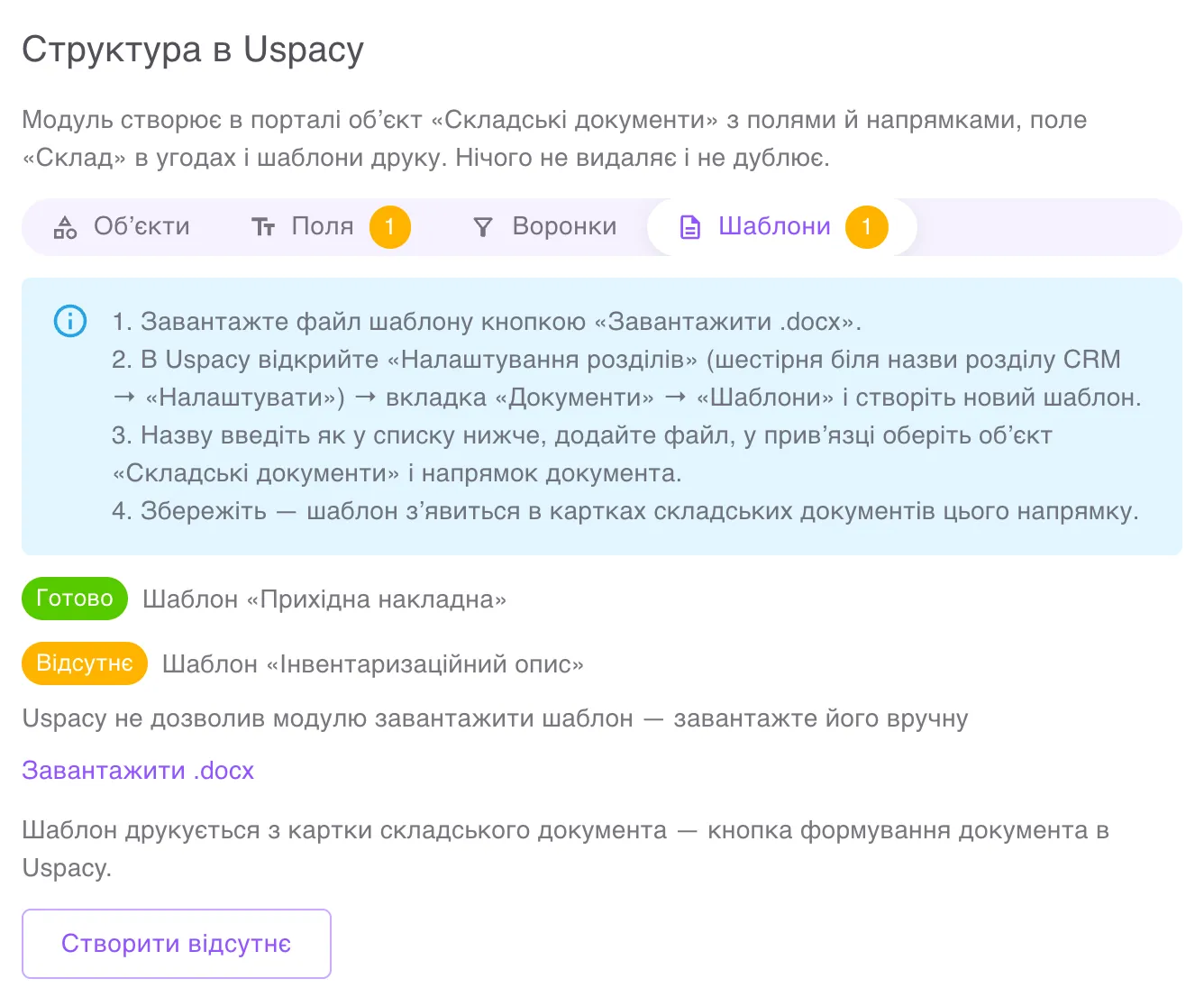
Section titled “Where the templates come from”The module adds the templates to Uspacy itself when you click Створити відсутнє (Create missing) on the Структура (Structure) tab, and links each one to «Складські документи» (“Stock documents”) and its pipeline. The status is shown in the Шаблони (Templates) group of that tab.
Every employee who has access to stock documents sees the templates: the module opens each template to all the departments that exist in the portal at the time of upload.
How to generate a document
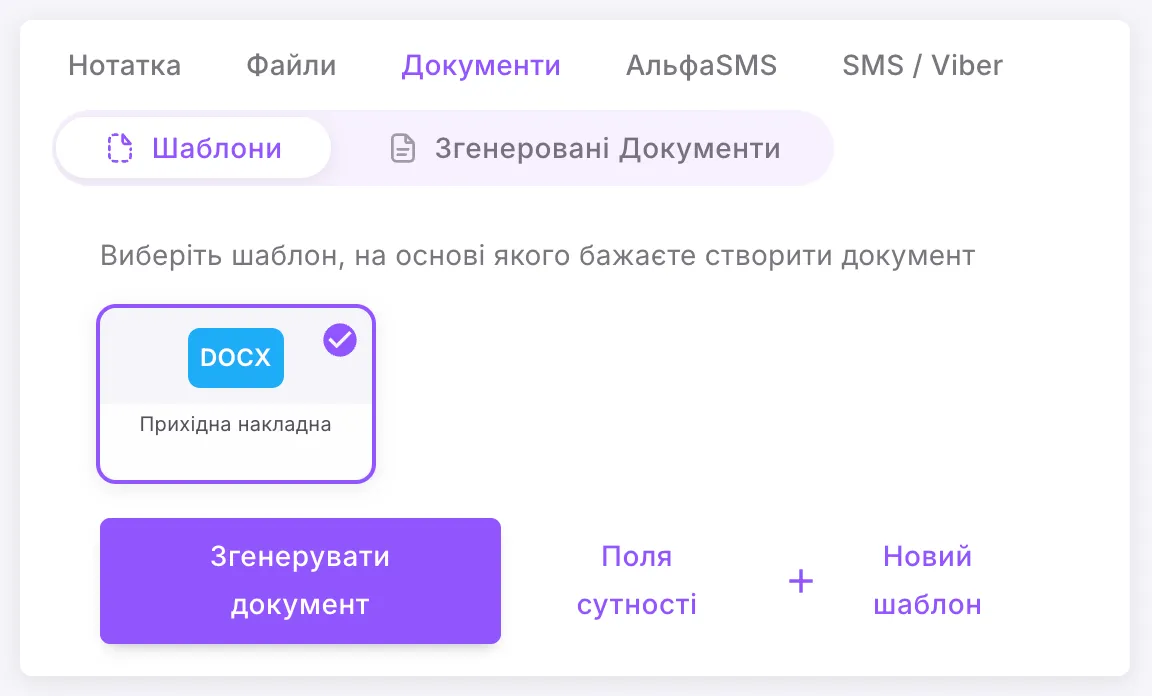
Section titled “How to generate a document”- Open the stock document card.
- Go to Documents (Документи) → Templates (Шаблони).
- Choose the template for your pipeline, for example «Прихідна накладна».
- Click Generate document (Згенерувати документ) and download the result.
If a template is missing
Section titled “If a template is missing”Uspacy may not allow the module to upload the templates. Then, after Створити відсутнє, you will see «Uspacy не дозволив модулю завантажити шаблони друку — завантажте їх вручну: вкладка «Структура» → «Шаблони»» (“Uspacy did not allow the module to upload the print templates — upload them manually: the «Структура» tab → «Шаблони»”), and in the Шаблони group each template gets a Завантажити .docx (Download .docx) link and instructions:
- Download the template file with the Завантажити .docx button.
- In Uspacy, open Section settings (Налаштування розділів) (the gear next to the CRM section name → Configure (Налаштувати)) → the Documents (Документи) tab → Templates (Шаблони) and create a new template.
- Enter the name as it appears in the list on the «Структура» tab, add the file, and in the binding choose the «Складські документи» object and the document’s pipeline.
- Save — the template appears in the stock document cards of that pipeline.
After that, refresh the «Структура» tab: the template items become «Готово» (“Ready”).
Other situations
Section titled “Other situations”- The template was deleted in Uspacy. The item becomes «Відсутнє» (“Missing”) — click Створити відсутнє and the module uploads it again (or upload the file manually as described above).
- An employee does not see a template («Для цієї сутності поки відсутні шаблони» — “There are no templates for this entity yet”). Their department was created after the templates were uploaded, or the templates were added before October 2026. An administrator opens the template in the section settings (the Документи → Шаблони tab) and adds the departments that need access.
- You need a fresh version of a template. The module adds only missing templates and does not replace existing ones. Delete the old template in Uspacy and click Створити відсутнє.
- The Uspacy “Standard” (Стандартний) plan allows up to five document templates; the module needs four. If there is no room, make room or switch to the “Professional” (Професійний) plan.