
Quick start: Warehouse & Inventory for Uspacy
The app keeps warehouses, stock and cost right in Uspacy: documents are created in the Розумні об’єкти (Smart objects) section, and goods are reserved and written off by deal stage. Getting started takes five steps, about 15–20 minutes. For the first 14 days after the first installation, all features are available with no limit on the number of warehouses.
What you need
Section titled “What you need”- a Uspacy portal and owner or administrator rights;
- products in the Uspacy catalog (the module does not count services — they have no stock);
- a deal pipeline in which you sell goods.
Step 1. Install the app
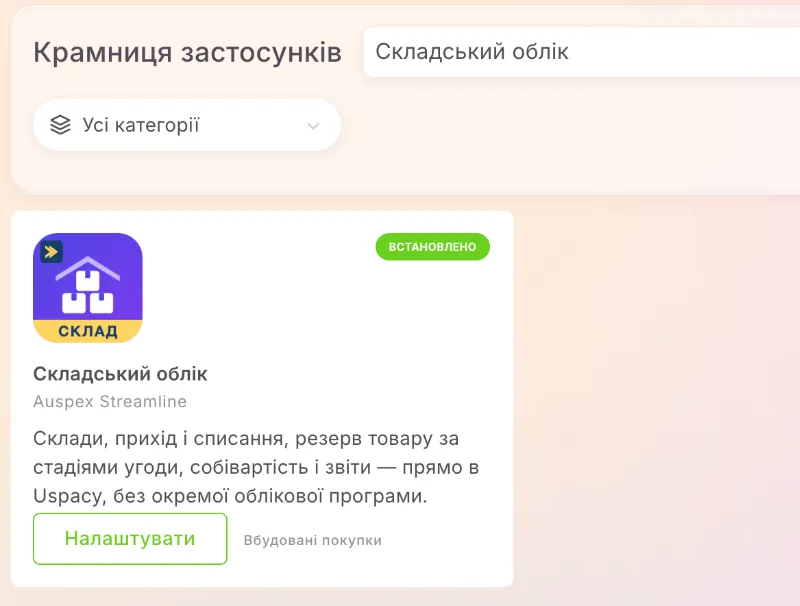
Section titled “Step 1. Install the app”In Uspacy, open the App store (Крамниця застосунків), find Warehouse & Inventory (Складський облік; the developer is Auspex Streamline) and click Get (Отримати). After installation, open the app’s settings page — this is the module screen with the Тариф (Plan), Склади (Warehouses), Облік (Accounting), Звіти (Reports) and Структура (Structure) tabs. It opens on the Тариф tab, and the header shows the «Пробний до …» (“Trial until …”) badge with the end date of the trial period.
Step 2. Create the structure in the portal
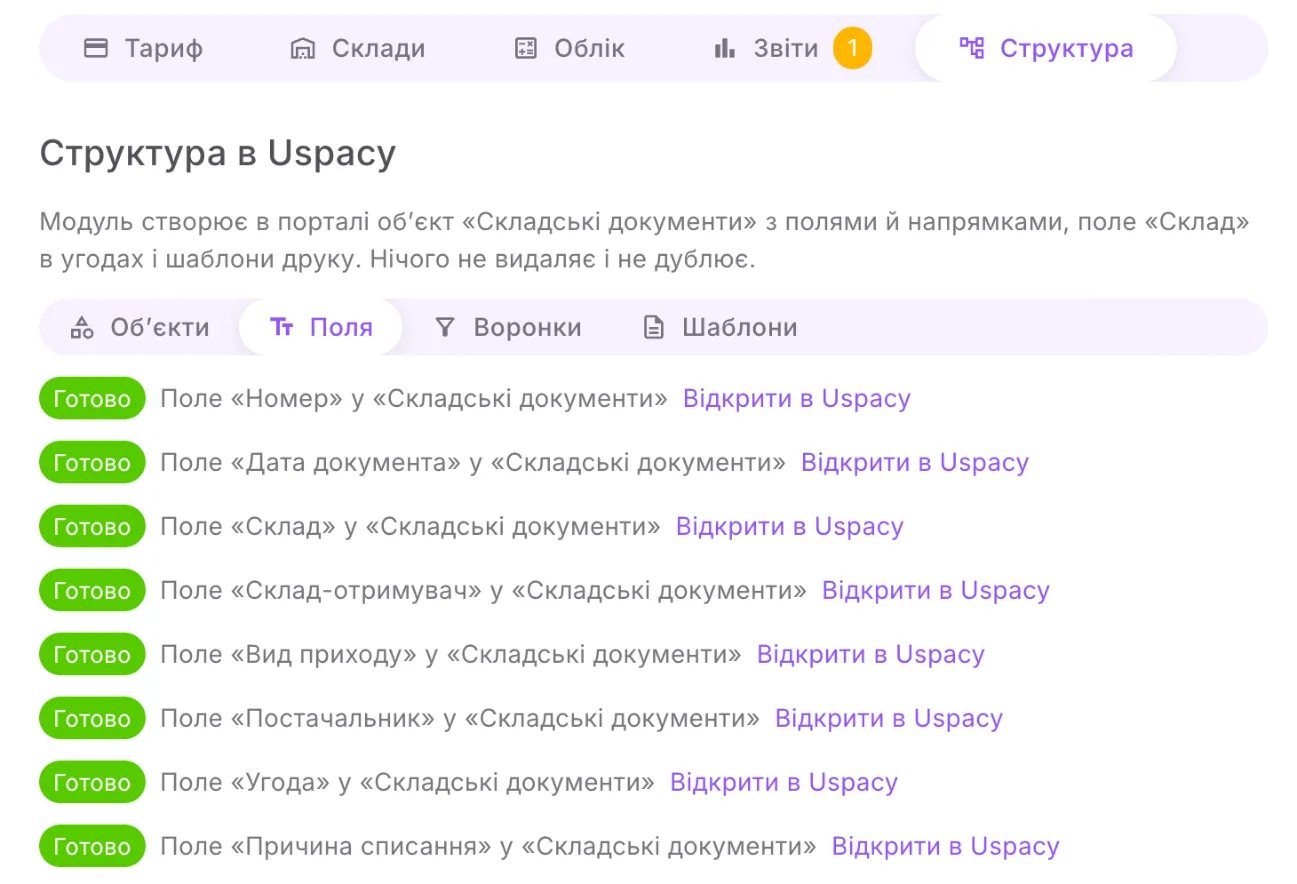
Section titled “Step 2. Create the structure in the portal”Open the Структура tab and click Створити відсутнє (Create missing). The module creates in the portal the smart object «Складські документи» (“Stock documents”) with its fields and four pipelines («Прихід» (“Receipt”), «Переміщення» (“Transfer”), «Списання» (“Write-off”), «Інвентаризація» (“Stocktake”)), the «Склад» (“Warehouse”) field in deals, print templates and the «Основний склад» (“Main warehouse”) warehouse. It does not delete or duplicate anything that already exists. When everything is ready, the message «Створено елементів: …» (“Items created: …”) appears and the button disappears. Look for «Складські документи» in the Uspacy menu under Розумні об’єкти, not under CRM.
Step 3. Check the warehouses
Section titled “Step 3. Check the warehouses”The Склади tab already has «Основний склад». Rename it with the Змінити (Edit) button or add other warehouses: enter Назва складу (Warehouse name) and, optionally, Адреса (Address), and click Додати склад (Add warehouse). Below, choose Склад за замовчуванням для угод без складу (Default warehouse for deals without a warehouse) — deals with no warehouse specified will be reserved from it. See Settings for details.
Step 4. Turn on accounting and set the deal stages
Section titled “Step 4. Turn on accounting and set the deal stages”- Open the Облік tab and turn on Складський облік увімкнено (Inventory accounting is on).
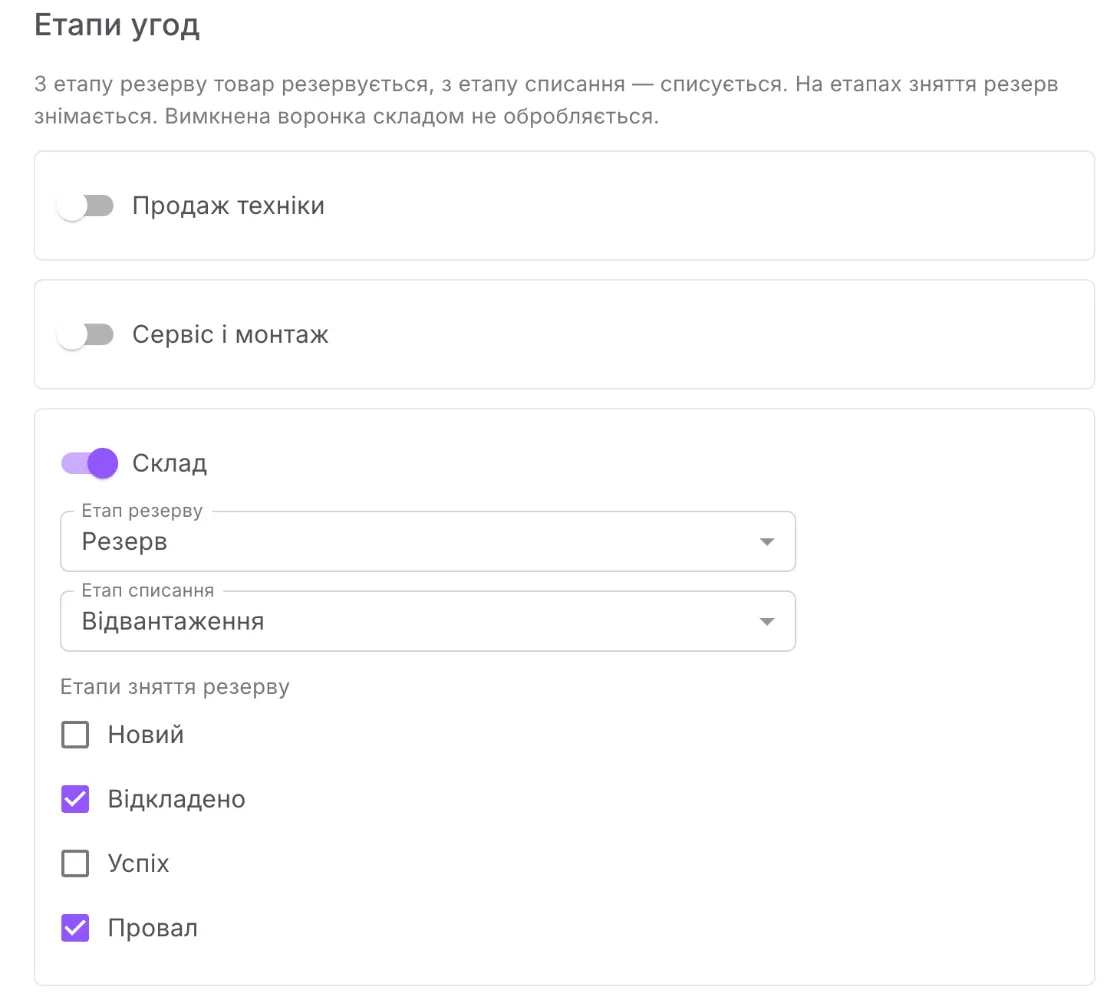
- In the Етапи угод (Deal stages) block, turn on the pipeline in which you sell goods.
- Choose Етап резерву (Reservation stage) — goods are reserved from this stage on. Choose Етап списання (Write-off stage) — at this stage goods are written off from the warehouse. Tick Етапи зняття резерву (Reserve release stages); the lost stage is ticked from the start.
- Click Зберегти (Save).
After saving, the «Склад» field in the deals of this pipeline becomes required at the reservation stage, and the module reserves in the background the open deals that are already at reservation stages.
Step 5. Enter opening stock
Section titled “Step 5. Enter opening stock”The module takes stock only from posted documents. To enter what is already in the warehouse:
- Розумні об’єкти → Складські документи (Stock documents) → the Прихід (Receipt) pipeline → create a record.
- Set Вид приходу (Receipt type) = Оприбуткування (Stock addition) and fill in Склад (Warehouse). The module sets Номер (Number) and Дата документа (Document date) itself.
- On the Products (Продукти) tab, add products with quantity and price. The unit price becomes the product’s cost.
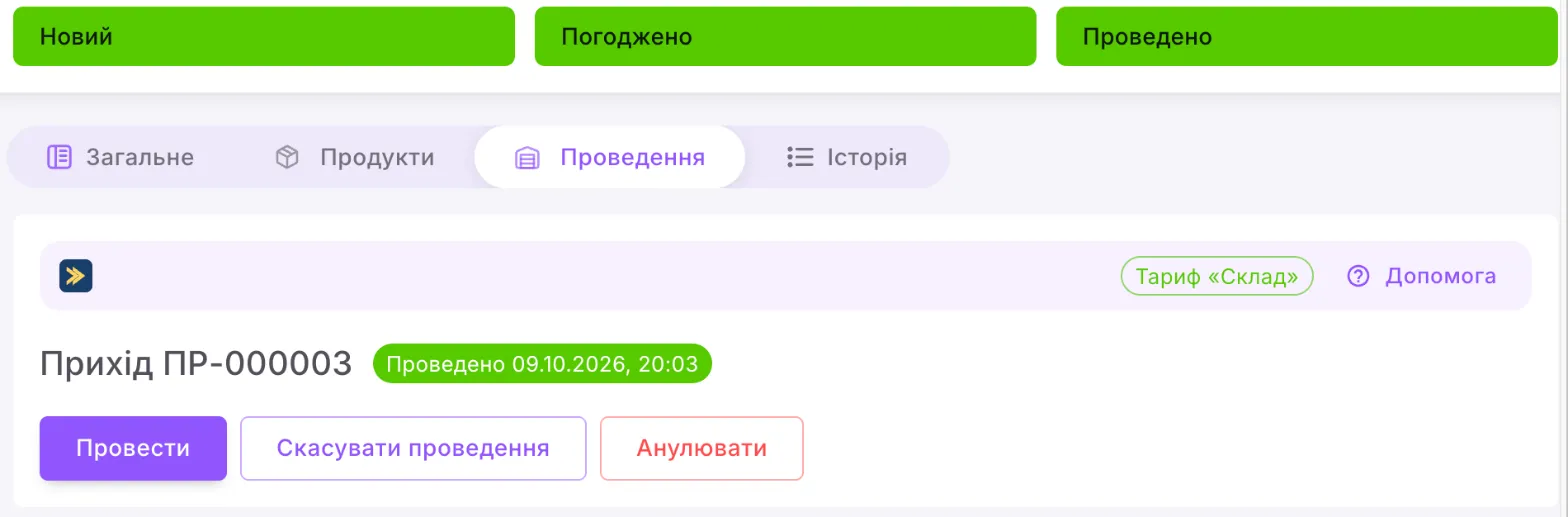
- Open the Проведення (Posting) tab and click Провести (Post).
You will see «Документ проведено» (“Document posted”). The stock appears on the Залишки (Stock) tab of the product card and in the «Залишки» report, and the stock field on the Uspacy product card updates within a minute.
Your first deal with a reserve
Section titled “Your first deal with a reserve”Create a deal in the configured pipeline, fill in the Склад field, add products and move the deal to the reservation stage. Open the Резерв (Reserve) tab in the card — the «Зарезервовано» (“Reserved”) table shows the «Зарезервовано» status. If there is not enough stock, the module reserves what there is and writes a comment in the deal mentioning the responsible person. When the deal reaches the write-off stage, the goods are written off automatically. See Reserve and write-off by deal for details.
If something goes wrong
Section titled “If something goes wrong”| What you see | What to do |
|---|---|
| «Спочатку створіть або підключіть структуру у вкладці «Структура»» (“First create or connect the structure on the «Структура» tab”) | Follow step 2. Until the structure exists, you cannot add warehouses. |
| A red line «Досягнуто ліміту тарифу …» (“Plan limit reached …”) after «Створити відсутнє» | The Uspacy “Standard” (Стандартний) plan has run out of room: the module needs one smart object, four pipelines and four templates. Make room or switch to the “Professional” (Професійний) plan. |
| You do not see «Складські документи» in the «Розумні об’єкти» menu | Turn the object on in the CRM settings → “Smart objects” (Розумні об’єкти); employee access is set in the CRM permissions. |
| «Складський облік вимкнено в налаштуваннях» (“Inventory accounting is turned off in the settings”) | Follow step 4: turn accounting on and click Зберегти. |
| The deal has no reserve, and the tab says «Воронка цієї угоди не обробляється складським обліком» (“This deal’s pipeline is not handled by inventory accounting”) | Turn this pipeline on on the Облік tab. |
Still stuck? Message us on Telegram at @auspex_support_bot or call +38 044 300 24 01.