
Templates
A template is a ready-made text that the app itself fills in with customer data: the name, the deal amount, the waybill number. One template gives you thousands of personal messages. Templates are required for campaigns and automatic messages, and in the card they save the manager time.
Open the app → Templates.
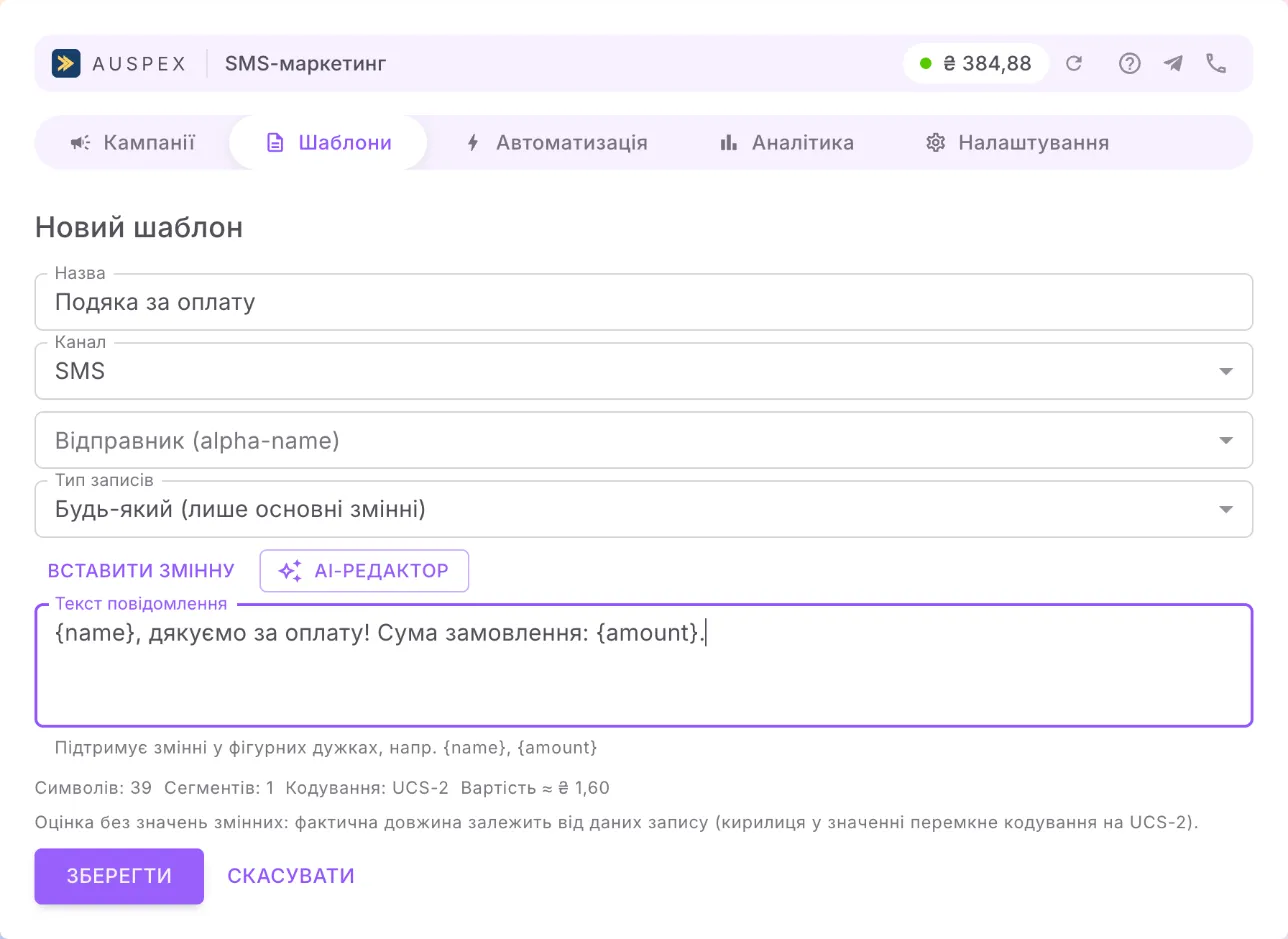
Create a template
Section titled “Create a template”- Click New template.
- Fill in the fields:
| Field | What to enter |
|---|---|
| Title | what the template is called in lists (the customer does not see it) |
| Channel | SMS, Viber or Cascade (Viber → SMS) |
| Record type | which records the template is for: deals, leads, contacts… or Any |
| Sender | the alpha name the message is sent from |
| Message text | the text itself, with variables in curly braces |
- Click Save.
What “Record type” is for
Section titled “What “Record type” is for”CRM fields differ from one record type to another: a deal has an amount, a lead does not. A template with the Deals type is offered only where deals are involved: in a deal card, in a campaign for deals, in a rule for deals. This way the customer does not get an empty gap instead of an amount.
An Any template works everywhere, but only the basic variables are available in it.
Variables
Section titled “Variables”The Insert variable button shows what you can insert.
| Group | Variables | Where the value comes from |
|---|---|---|
| Basic | {name} — first name or title, {phone} — phone, {title} — record title, {amount} — amount | available in any template |
| CRM fields | any field of a record of the chosen type | appear once “Record type” is chosen |
| Your variables | your own short name for a CRM field, for example {ttn} | you create them yourself, see below |
Custom variables
Section titled “Custom variables”Below the template list is the Your variables block. Choose a record type, think of a short name
(Latin letters, no spaces) and specify the CRM field. After that, {ttn} in a template inserts, for
example, the deal’s waybill number. A custom variable works in templates of the same record type.
If there is no value
Section titled “If there is no value”Sometimes a field in the record is empty. What to insert then is decided by the When a variable is
missing setting in Settings: remove the variable, insert a dash or keep the
{placeholder} as is.
Length and cost
Section titled “Length and cost”Below the text you see the number of characters, the number of segments and the encoding. This is an estimate without variable values: the real length depends on the record’s data. For example, Cyrillic in the customer’s name switches the encoding to UCS-2, and one segment then holds 70 characters instead of 160.
Viber templates
Section titled “Viber templates”For the Viber and Cascade channels, choose the Viber message type:
| Type | What it contains |
|---|---|
| Text | text only |
| Text + image + button | text, a picture and a button linking to a site or a payment page |
| Carousel | two or more cards, each with its own title, image and button |
- Images can be uploaded from your computer with the Upload button: JPEG, PNG or GIF, up to 1 MB.
- Lifetime (optional, 60–86400 seconds) — how long Viber keeps trying to deliver the message.
- Text formatting (bold, italic) shows in Viber 14.6 and later; it is not available in carousels.
In a cascade template you fill in both parts: the Viber message and the Message text, which is the SMS that goes out if the Viber message is not delivered.
Import from AlphaSMS
Section titled “Import from AlphaSMS”If you already have templates in your AlphaSMS account, click Import from AlphaSMS. In the window:
- find the templates you need by searching by title or text;
- tick them and click Import.
Identical texts are shown once, and those already imported are marked. A Viber template marked Not approved in Viber cannot be imported: Viber has to approve it first in your AlphaSMS account.
Edit or delete
Section titled “Edit or delete”- Edit — the change applies to future messages; messages already sent do not change.
- Delete — if the template is used by an auto-send rule or a campaign, the app names them: change or delete them first. If messages were already sent with the template, it disappears from the lists but stays in the history.