
Campaigns
A campaign sends one template to many customers selected by a saved Uspacy filter. Before launch you see the exact number of recipients and the cost, and afterwards how many messages have been sent and delivered.
Open the app → Campaigns → New campaign. The wizard has three steps.
Before you start
Section titled “Before you start”- Prepare a template for the record type you need.
- Save a filter with the customers you need in Uspacy: open a list, for example “Contacts” (Контакти), set up the filter and save it. Saved filters appear in the wizard once you have opened that list at least once in the same browser tab.
Step 1. Audience
Section titled “Step 1. Audience”- Choose the Record type: Contacts, Deals, Leads or Companies.
- Choose a Saved CRM filter or All records.
Recipients: N appears below right away.
If the filter contains a condition the app cannot transfer yet (for example, by date), it names the field and does not let you continue. This is a safeguard: without that condition the campaign would go to a wider group of people than you intended. Choose another filter or change this one in the CRM.
Step 2. Message
Section titled “Step 2. Message”- Choose a Message template. Only those that fit the chosen record type are offered.
- Choose a sender.
- Enter the Campaign title: this is what the campaign is called in the list.
- Choose When to send: Send now or Schedule for a date and time. The time follows the time zone of your Uspacy profile, which is shown below the field.
Step 3. Estimate & launch
Section titled “Step 3. Estimate & launch”Click Estimate. The app shows:
- Recipients — the exact number: just counted from the CRM, excluding stop-listed numbers and duplicates. If one number is recorded for several customers, the message goes out once.
- Cost — for SMS, calculated at AlphaSMS prices for each number (country and operator) and by the length of each recipient’s text. For Viber, the cost is approximate.
- The Balance of your AlphaSMS account.
If AlphaSMS does not serve some of the numbers, the app says how many: they are not included in the cost and do not get the message.
Launch (or Schedule) is available when there is enough money: the balance must cover the cost of this campaign, the reserve of campaigns already running and a 5% margin.
How a campaign runs
Section titled “How a campaign runs”| Status | What is happening |
|---|---|
| Scheduled | waiting for its start time |
| Preparing | the app collects the audience from the CRM and prepares the text for each recipient |
| Running | messages are being sent |
| Paused | stopped by you or by the app; the reason is shown below the status |
| Completed | all messages have been passed to AlphaSMS |
| Cancelled | stopped for good |
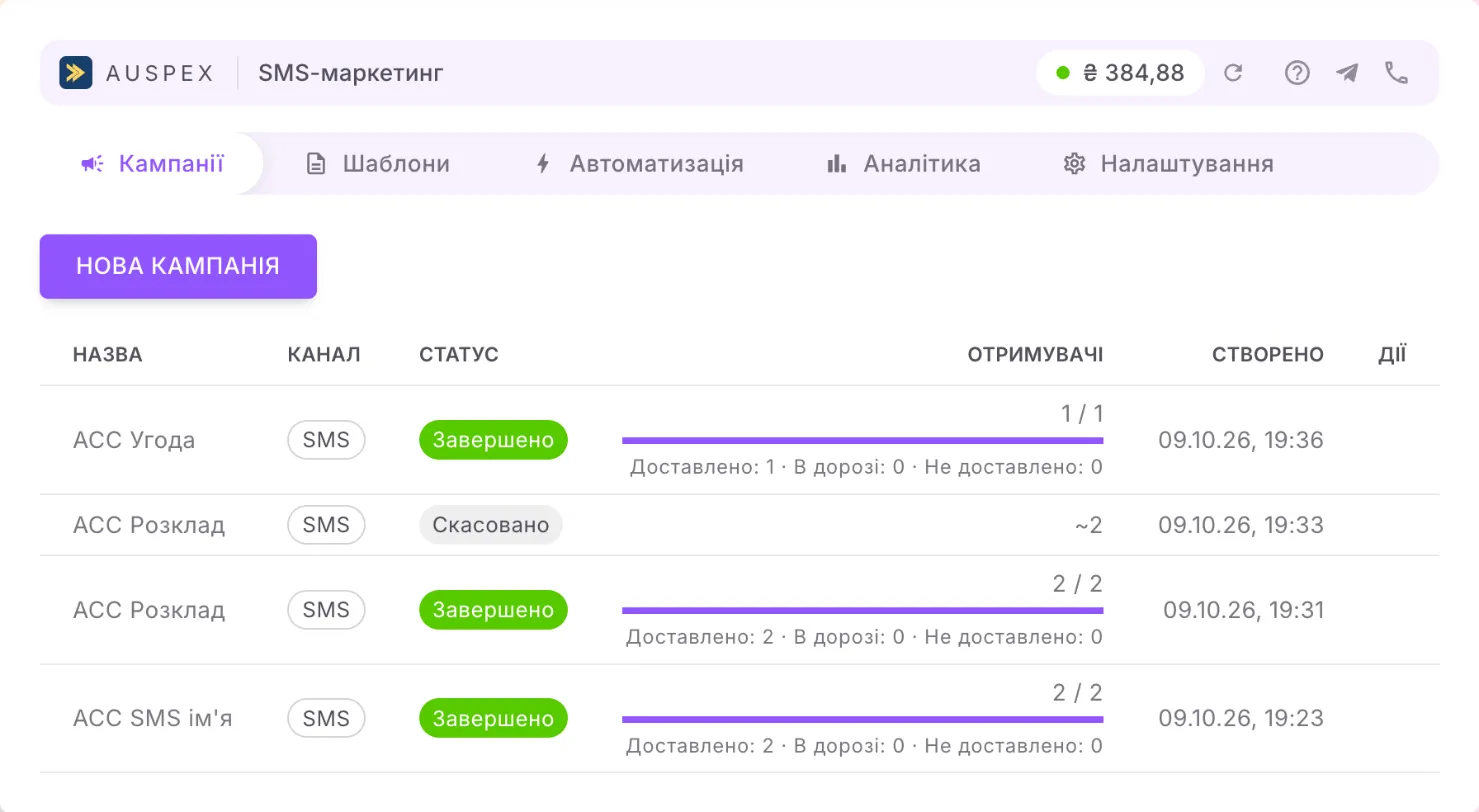
The Recipients column shows a “sent / total” counter and a progress bar, with delivery below it:
- Delivered — the operator confirmed delivery;
- Read — for Viber;
- In flight — AlphaSMS accepted the message, there is no report yet;
- Not delivered — the operator or AlphaSMS refused it.
Delivery reports keep arriving for some time after the “Completed” status, and the figures update on their own.
Speed. A large campaign is prepared first (10–15 minutes per 20,000 contacts) and then sent at up to two thousand messages per minute.
Pause, resume, cancel
Section titled “Pause, resume, cancel”- Pause — sending stops within a few seconds. What has already been passed to AlphaSMS cannot be recalled.
- Resume — the campaign continues from where it stopped; nobody gets the message twice.
- Cancel — stops the campaign for good, after confirmation. The remaining messages are not sent and no money is charged for them.
Why the app paused a campaign
Section titled “Why the app paused a campaign”| Reason below the status | What to do |
|---|---|
| Not enough balance at the provider | top up your AlphaSMS balance and click Resume |
| The CRM returned an error while building the audience | wait a few minutes and click Resume |
| No CRM access | check that the app is installed; if you reinstalled it, click Resume |
| Repeated send failures | check the template and the sender, then click Resume |
Drafts
Section titled “Drafts”If you close the wizard before launch, the campaign stays with the Draft status. Continue opens it at the estimate step, and Delete removes it together with its audience.
Good to know
Section titled “Good to know”- Quiet hours do not apply to campaigns: they are for automatic messages only. To avoid messaging customers at night, schedule the campaign for a convenient time.
- The stop list is checked twice: during preparation and right before sending. A number added to the stop list after launch does not get the message.
- Every campaign message appears in that customer’s card history.