
Sending from the card
The fastest way to message a customer is the app tab in a CRM card. It is available in deal, lead and contact cards.
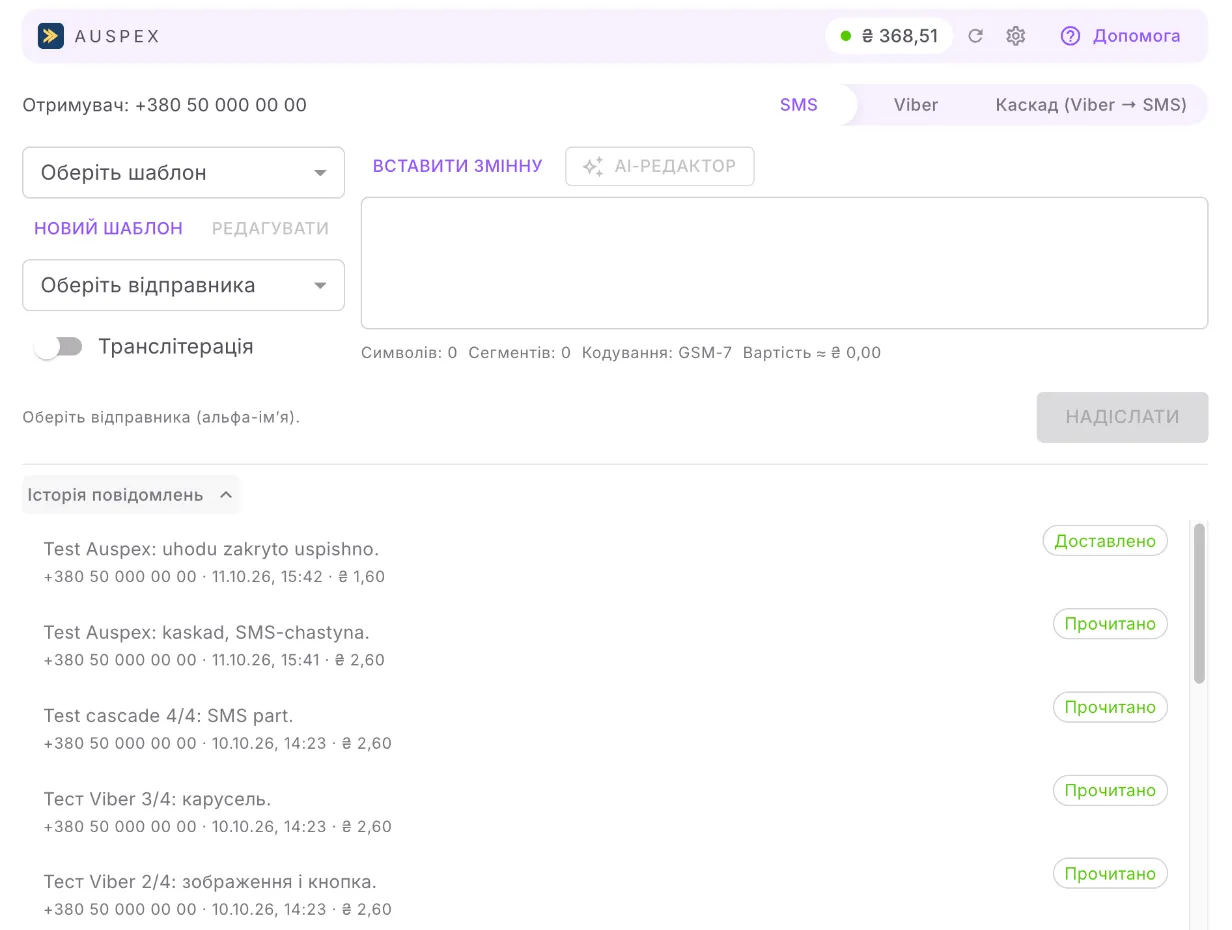
How to send a message
Section titled “How to send a message”- Open the card and go to the app tab.
- Check the Recipient line: this is the number the message will go to.
- Choose the channel: SMS, Viber or Cascade (Viber → SMS).
- Choose the sender (alpha name).
- Write the text or choose a template. Variables such as
{name}are replaced with the record’s data right away. - Click Send.
The message appears in the message history with its status, and an entry about the send appears in the history of the CRM card itself.
Where the number comes from
Section titled “Where the number comes from”- For a lead or a contact, from the “Phone” (Телефон) field of the record itself.
- For a deal, from the linked contact, or from the linked company if no contact has a number.
With one number the form simply shows it. With several (on the record, on several contacts of a deal, on the company), the Recipient line becomes a list: each number shows its type and whose it is. The main number is preselected; the message goes to the one you pick.
If there is no number, the form shows “No recipient phone”. Add a number in the card or in the linked contact.
Counters below the text
Section titled “Counters below the text”| Counter | What it means |
|---|---|
| Characters | the length of the text after variables are filled in |
| Segments | how many SMS the operator splits the text into; you pay for each segment |
| Encoding | GSM-7 (Latin) or UCS-2 (Cyrillic and other characters) |
| Cost ≈ | the approximate price of this message |
One SMS holds 160 Latin characters or 70 Cyrillic ones; a longer text is split into segments of 153 and 67 characters respectively.
Transliteration
Section titled “Transliteration”The Transliterate switch rewrites Cyrillic in Latin letters. A segment then holds more characters, so a long message costs less. To have the switch on from the start, tick Transliterate by default in Settings.
AI editor
Section titled “AI editor”The AI editor button suggests a version of your text in the chosen style: Formal, Shorter, Friendly, Business tone, Creative, Fix mistakes. You see “Before” and “Suggestion” and decide whether to apply it.
- The AI does not change variables in the text: if a suggestion affects them, it is discarded.
- The AI does not change the language of the message either: Ukrainian text stays Ukrainian, Russian stays Russian, English stays English.
- For SMS, the editor does not add emoji or “long” dashes: one such character can double the number of SMS parts. Below the suggestion you see how many SMS parts there were and how many there will be; if the new version costs more, a warning appears.
- The AI only rewrites your text. It will not create a message from an empty field.
- The text to edit can be up to 2000 characters.
- You can turn the AI editor off for the whole portal in Settings.
Message history
Section titled “Message history”Below the form is the folded Message history section. Click it to see all messages to this record: from the card, from campaigns and automatic ones. The list scrolls, newest first.
| Status | What it means |
|---|---|
| Queued, Enqueuing, Sending | the message has not been passed to AlphaSMS yet |
| Accepted | AlphaSMS accepted the message; there is no delivery report yet |
| Delivered | the operator confirmed delivery to the phone |
| Read, Replied | for Viber: the customer opened the message or replied |
| Delivery failed | the operator could not deliver it (phone switched off, wrong number and so on) |
| Request error | AlphaSMS rejected the message straight away; no money was charged |
Click a message to see the details: channel, number, number of segments, cost, when it was sent and delivered, and for Viber the text of the customer’s reply.
Good to know
Section titled “Good to know”- A double click does not send two messages: the same text to the same recipient within a minute is sent once.
- Quiet hours do not apply to the card: they restrict only automatic messages. A message from the card goes out right away.
- A number on the stop list does not get the message: the form says “This number is on the stop list — the message was not sent”.
- If the Send button is inactive, the text to its left says what is missing: a phone number, an AlphaSMS key, a sender or the text.
- The gear next to the balance opens the app settings right from the card. Only the portal owner and administrators see it.