
Quick start: SMS Marketing for Uspacy
The app sends SMS and Viber messages from Uspacy through the AlphaSMS service. The app itself is free: you pay AlphaSMS only for the messages you send. Getting started takes five steps, about 10–15 minutes.
What you need
Section titled “What you need”- a Uspacy portal and owner or administrator rights;
- an AlphaSMS account (if you do not have one yet, you will create it in step 2);
- money on your AlphaSMS balance for the first messages.
Step 1. Install the app
Section titled “Step 1. Install the app”In Uspacy, open the App store (Крамниця застосунків), find SMS Marketing: SMS + Viber and click Get (Отримати). The app section appears in the menu on the left, and a tab for sending appears in the deal, lead and contact cards.
Step 2. Sign up for AlphaSMS
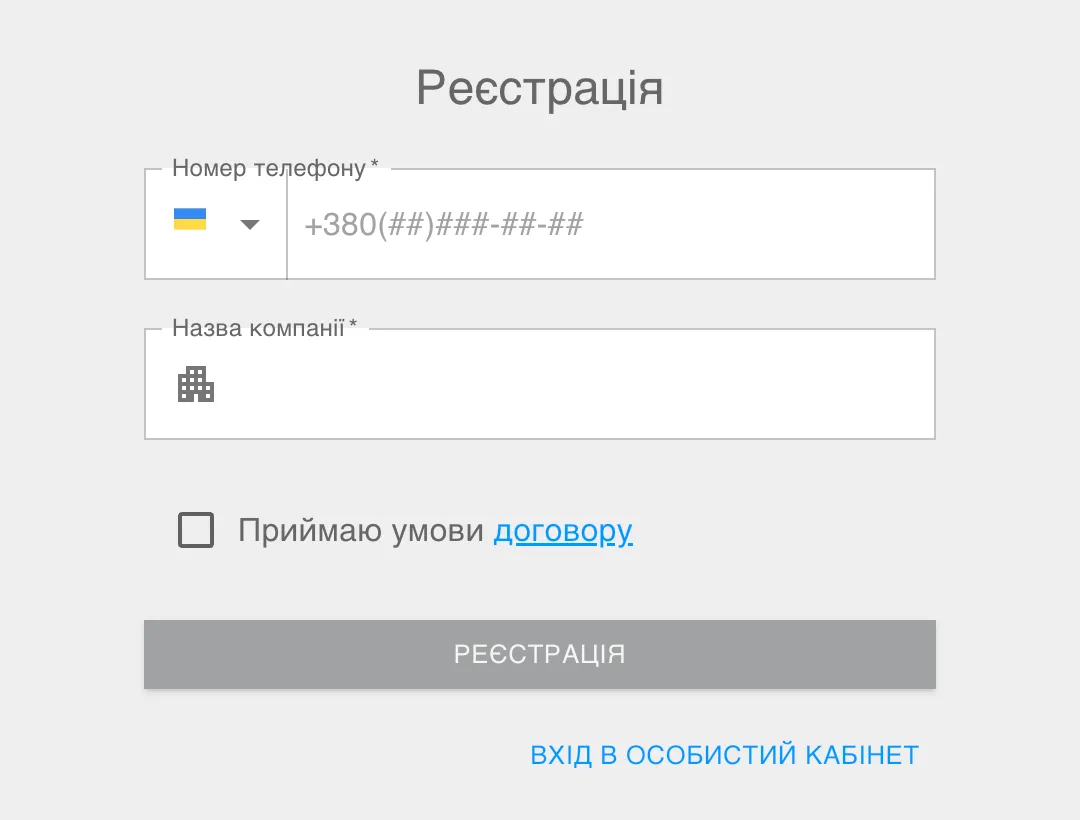
Section titled “Step 2. Sign up for AlphaSMS”Follow the link and create an account: Sign up for AlphaSMS.
Already use AlphaSMS? Skip this step and log in to your account.
Step 3. Create an API key
Section titled “Step 3. Create an API key”In your AlphaSMS account:
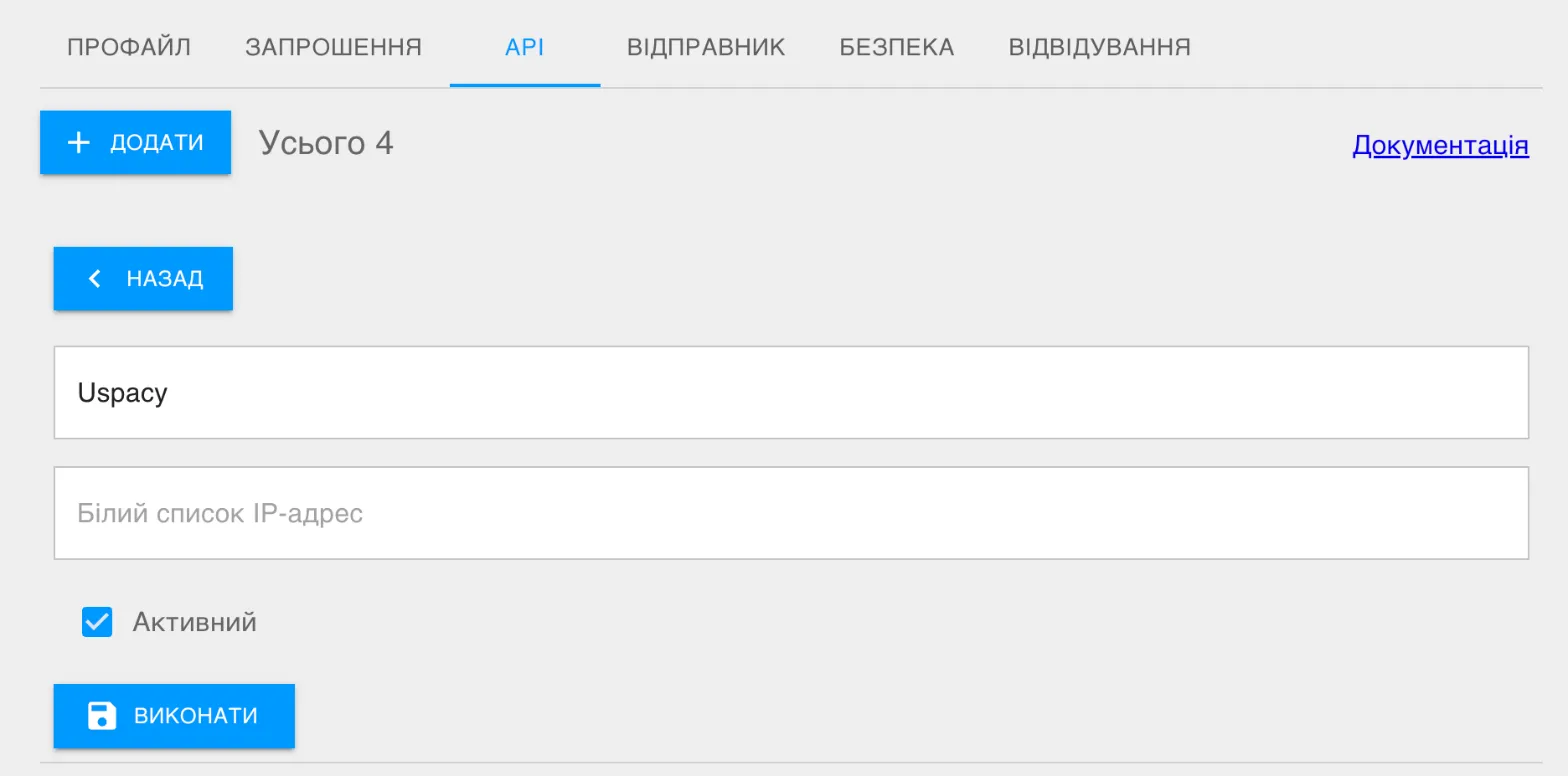
- Open Settings (Налаштування).
- Go to the API tab.
- Click Add (Додати), enter any comment (for example, “Uspacy”), tick Active (Активний) and click Execute (Виконати).
- Leave the IP whitelist (Білий список IP-адрес) field empty. Otherwise AlphaSMS will not accept requests from the app.
- Copy the key right away: once you close the page, the account hides it.
Step 4. Connect the key in the app
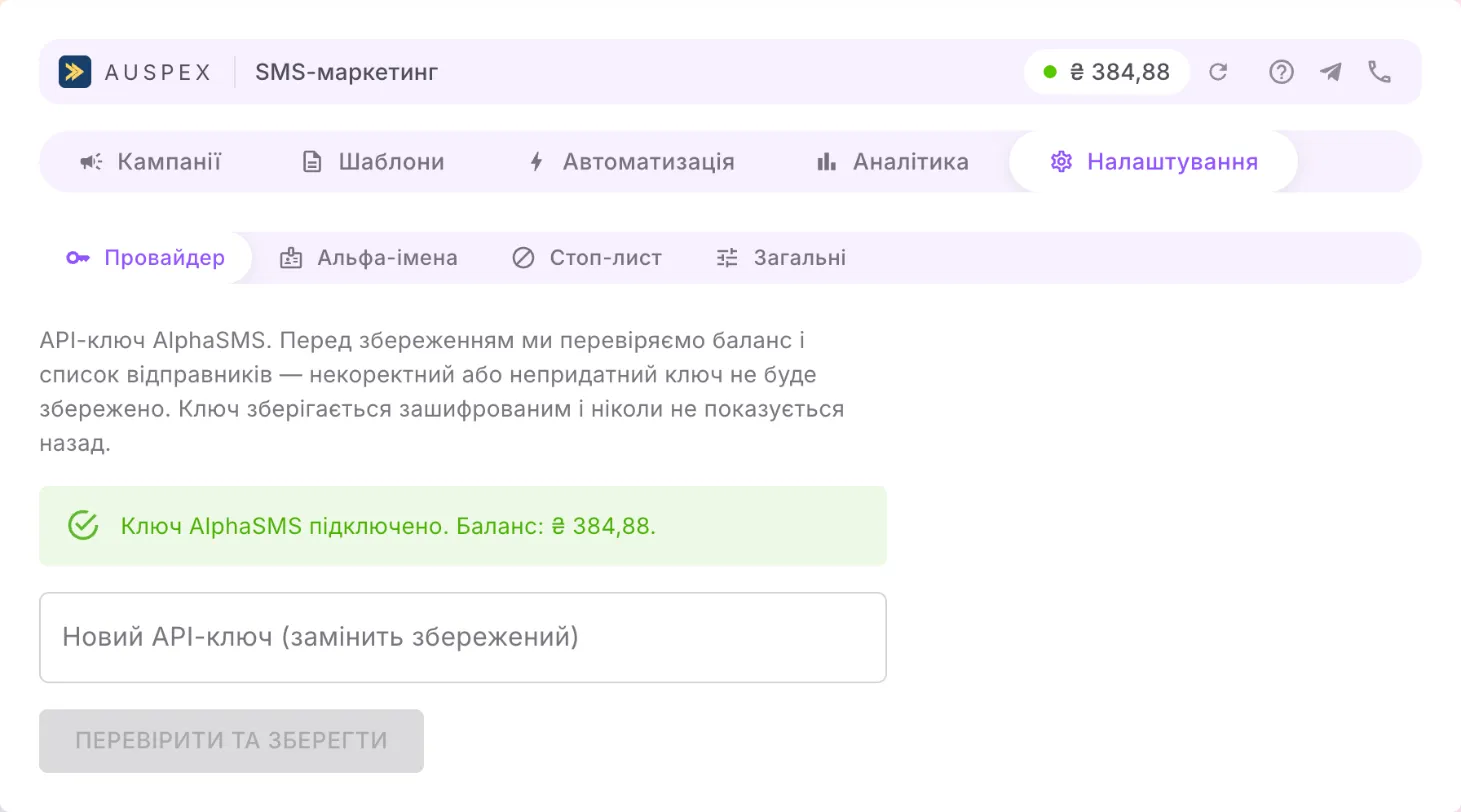
Section titled “Step 4. Connect the key in the app”- In Uspacy, open the app → Settings → Provider.
- Paste the key into the AlphaSMS API key field and click Validate and save.
The app checks the key with AlphaSMS right away. If everything is fine, you see the balance of your account; if the key is wrong, you see a message saying so and nothing is saved. The key is stored encrypted and is never shown again.
Step 5. Balance and sender name
Section titled “Step 5. Balance and sender name”- Top up the balance in your AlphaSMS account: without money in the account, messages will not go out. The current balance is always visible in the top bar of the app.
- Add a sender name (alpha name) — what the recipient sees instead of a number, for example your company name. You order it in your AlphaSMS account (the “Sender” (Відправник) tab), and mobile operators approve it. When the name is ready, click Refresh from AlphaSMS on the Alpha names tab and it will appear in the list.
Your first message
Section titled “Your first message”Open any deal, lead or contact that has a phone number, go to the app tab, choose a sender, write the text and click Send. The delivery status appears right there, and an entry appears in the card history.
Next, it is worth setting up:
- templates that fill in the name, amount and other CRM fields;
- automatic messages — an SMS when a deal or lead moves to the stage you need;
- campaigns — bulk sends based on a saved Uspacy filter.
If something goes wrong
Section titled “If something goes wrong”| What you see | What to do |
|---|---|
| “AlphaSMS rejected this key” | Check that the key was copied in full and that it is marked Active in your AlphaSMS account. |
| “This key is restricted to an IP list” | In your AlphaSMS account (Settings → API), clear the IP whitelist field for this key. |
| The list of alpha names is empty | The name has not been approved yet or has not been added in your AlphaSMS account. After approval, click Refresh from AlphaSMS. |
| The balance is 0 or “Top up your AlphaSMS balance” | Top up your account in AlphaSMS (the “Finance” (Фінанси) section). |
| An automatic message did not arrive right after installation | For the first few minutes after installation or after the first rule is created, Uspacy does not pass events yet. Change the stage again in 5–10 minutes. |
Still stuck? Message us on Telegram at @auspex_support_bot or call +38 044 300 24 01.